Single Job Page
What candidates see when they open a job - the description, the job summary sidebar, the map, and the apply section.
Every job gets its own page at /job/<job-name>/. Candidates reach it from the
Apply button on the Jobs Page or any
listing.
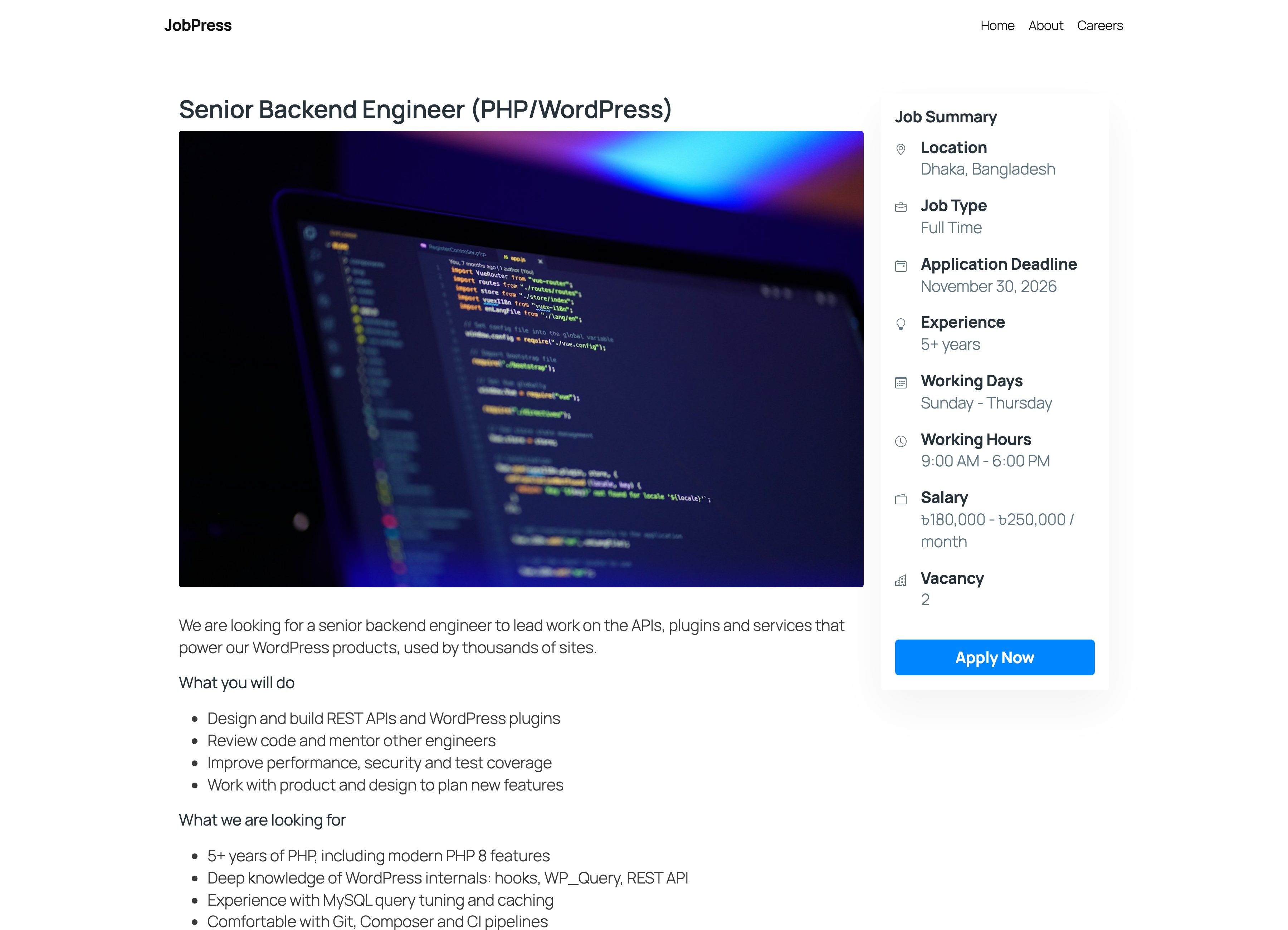
The page layout
- Title and cover image - the job title and the cover (featured) image, if you set one.
- Description - everything you wrote in the editor.
- Map - the Google map from Google Map iFrame Embed Code, under the description.
- Job Summary - a sidebar with Location, Job Type, Application Deadline, Experience, Working Days, Working Hours, Salary, and Vacancy. Details you left empty are left out.
- Apply Now - the sidebar button jumps to the apply section.
The sidebar sits on the right. To move it to the left, tick Single Page Sidebar Position in Settings → General.
The apply section
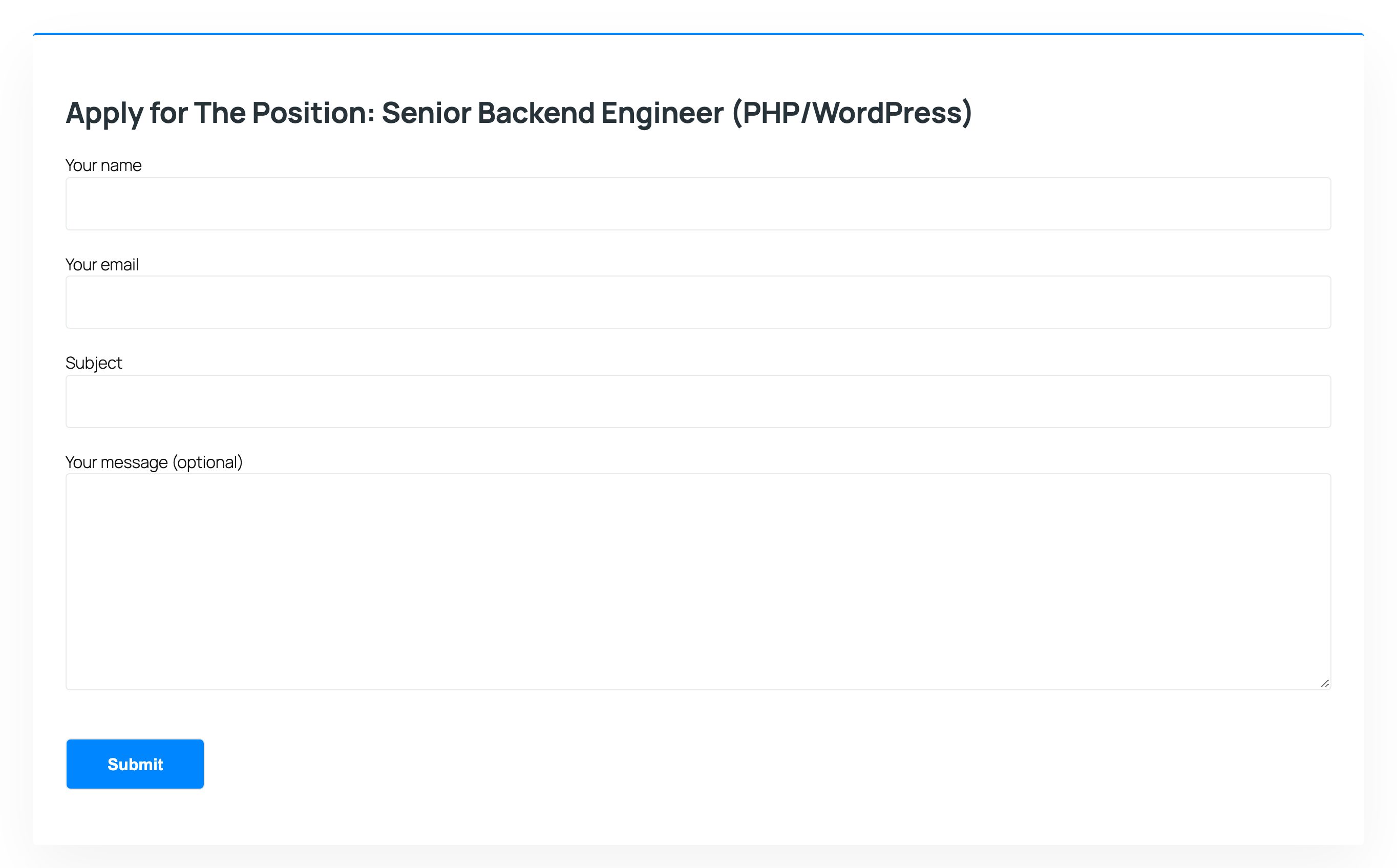
The bottom of the page is headed Apply for The Position: followed by the job title. What it shows depends on the job’s Job Application Collect Medium:
- a Contact Form 7 form, as above
- your email instructions for this job
- the Resume Submit Instruction from Settings → General
A job with no medium chosen uses the Resume Submit Instruction too. If that is also empty, candidates see “No application process added by the recruiter.”, so set it once to make sure every job has a way to apply.
Receiving applications
Contact Form 7 sends each application to the email address set in that form’s Mail tab. Add a file upload field to the form to collect CVs.
Colors
The page uses your brand colors from Settings → Appearance: the Apply Now button, links, headings, and borders.