Elementor Widget
Drop the JobPress Jobs widget into an Elementor page, choose what it lists, and style every part from the Style tab.
If you build pages with Elementor, the JobPress Jobs widget gives you the
same listing as the [jobpress] shortcode, with Elementor’s
own style controls. It appears when Elementor is active.
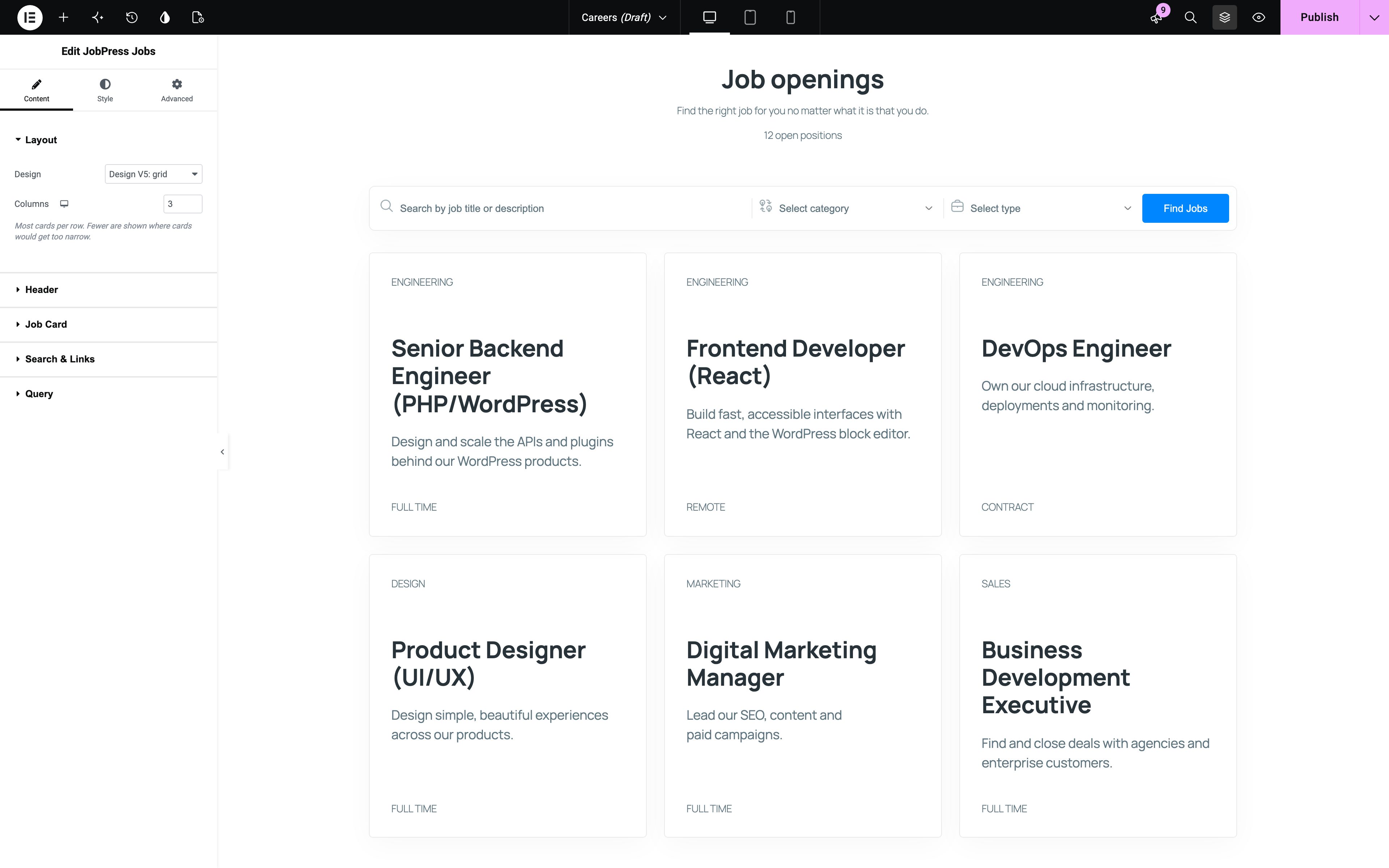
Adding the widget
In the Elementor editor, search the widget panel for JobPress Jobs and drag it onto the page. It shows your jobs right away, in your global design.
Content tab
Every setting left on Default (or empty) follows the global Listing Defaults, so changing those later still updates the widget. Show/hide options offer Default, Show, and Hide.
- Layout - Design and, for grids, Columns.
- Header - the title, subtitle, and open positions count.
- Job Card - which details each card shows, and the button text.
- Search & Links - a search bar that opens the Jobs Page results, and a “View all jobs” link.
- Query - Number of jobs, Categories, Job types, Only these jobs, Exclude jobs, Order by, and Order.
Options that the chosen design doesn’t display are hidden.
Style tab
Style each part of the listing for this widget:
- Colors - the six JobPress colors, overriding Settings → Appearance.
- Header - alignment, space below, and the title, subtitle, and count styles.
- Job Card - padding, space between cards, border radius, and background and border colors for the normal and hover states.
- Job Title and Job Details - colors, hover color, typography, and spacing.
- Apply Button - text and background colors, padding, border radius, and typography.
- Category Group Header (Designs V2 and V4) - background, the category name, description, and the Openings badge.
- Search Bar and View All Jobs Link - their colors, alignment, and spacing.
The usual Advanced tab options (margin, padding, visibility…) apply too.