Listing Designs
The five JobPress listing designs, what each one shows, and how to choose one globally or per listing.
A listing is a block of job openings you place on any page with the shortcode, the block, or the Elementor widget. JobPress has five designs for it.
Choosing a design
- For every listing - pick one under Select Design in Settings → Shortcodes. It starts on Design V1: list.
- For one listing - choose a design in the block or widget settings, or add
design="3"to the shortcode. That listing keeps its design when you change the global one.
Listings with different designs can share a page, such as a grid of featured roles above a full grouped list.
The Jobs Page has its own layout
The Jobs Page and the category and type pages always use the built-in layout with search and filters, whatever design you pick here.
Design V1: list
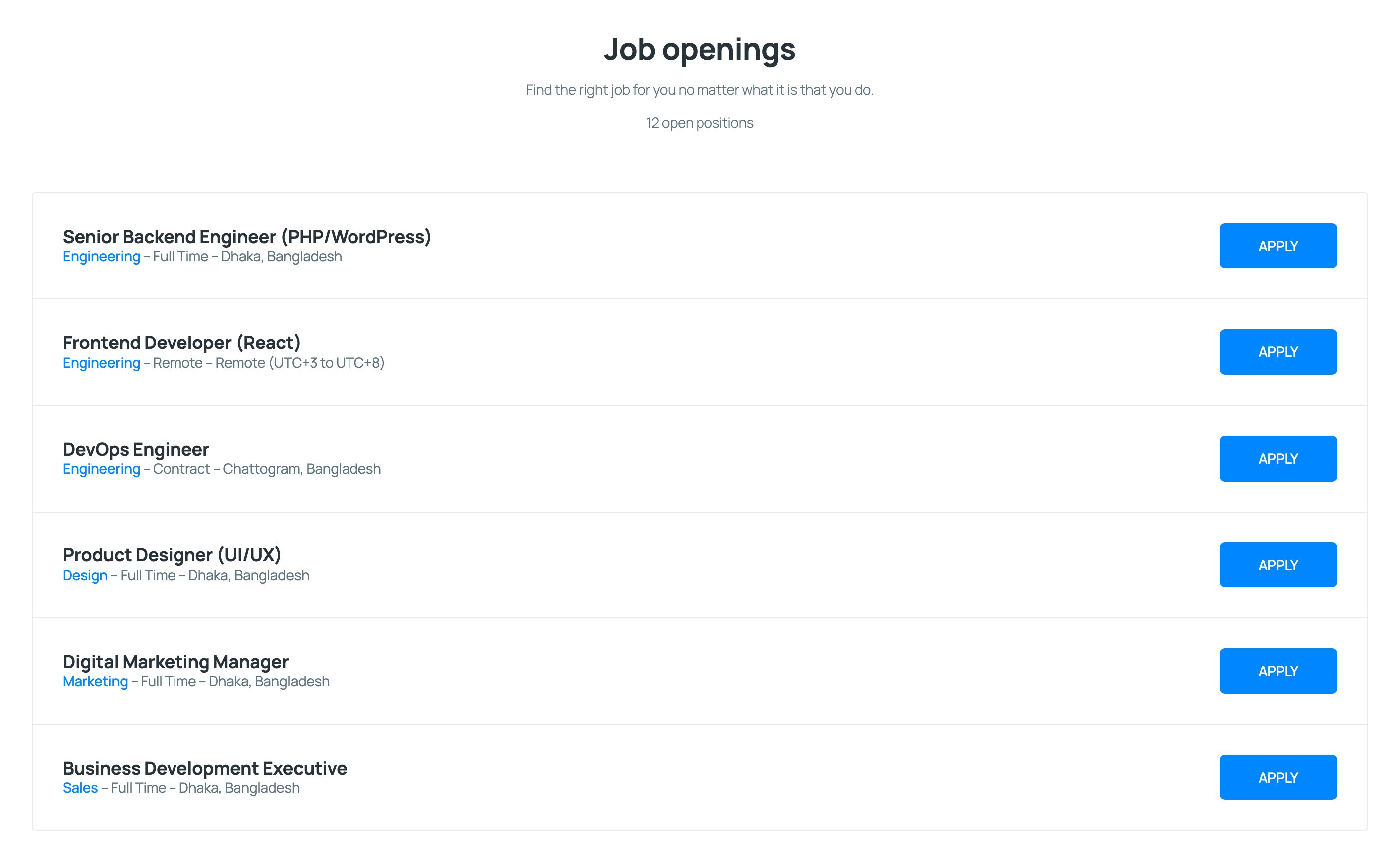
A compact list. Each row shows the job title, its category (linked), type, and location, with an Apply button. The header shows the title, subtitle, and the open positions count.
Design V2: grouped by category
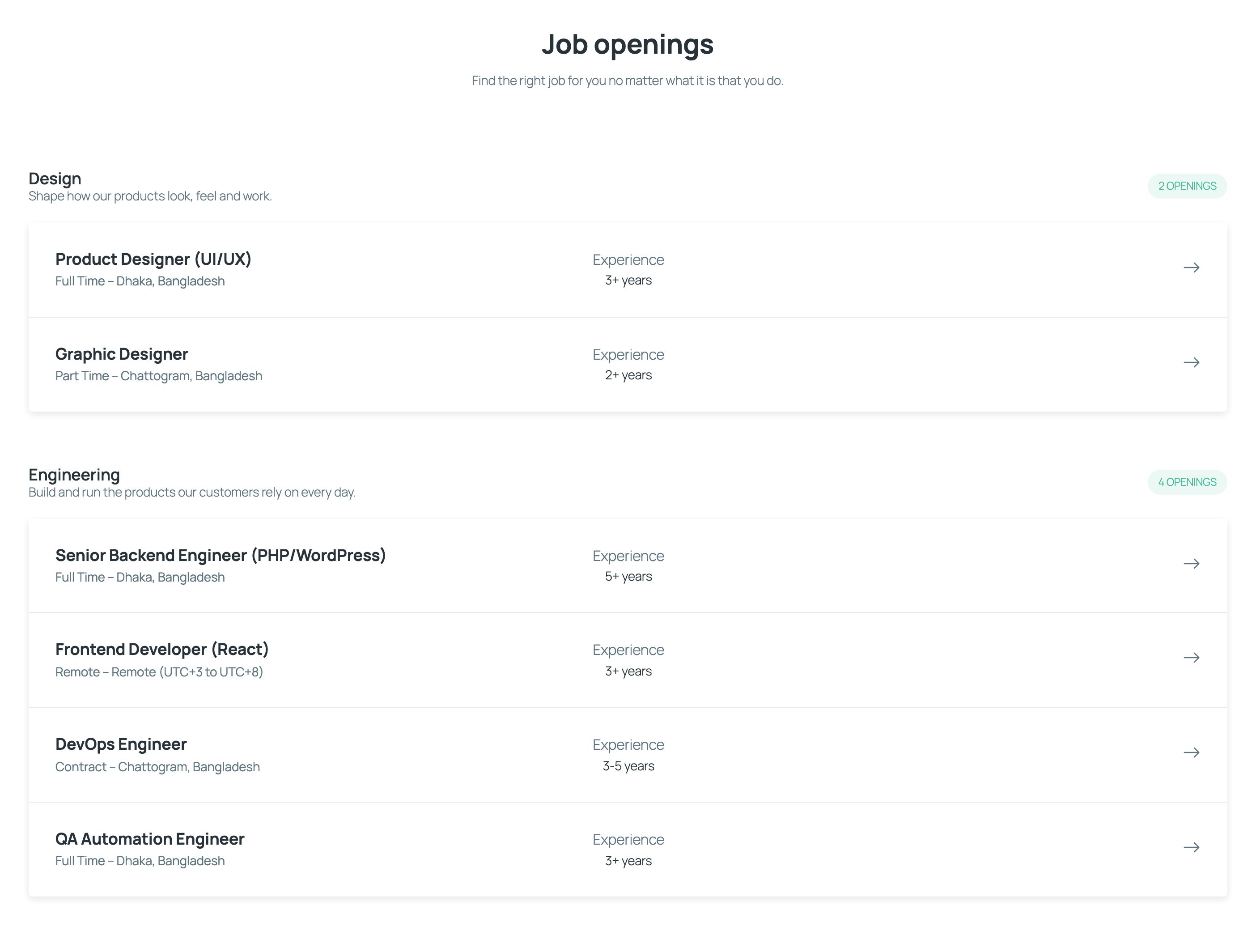
Jobs grouped under each category’s name and description, with an openings badge per group. Each row shows the type, location, and experience, with an arrow link to the job. Use it when you hire for several teams.
Design V3: cards
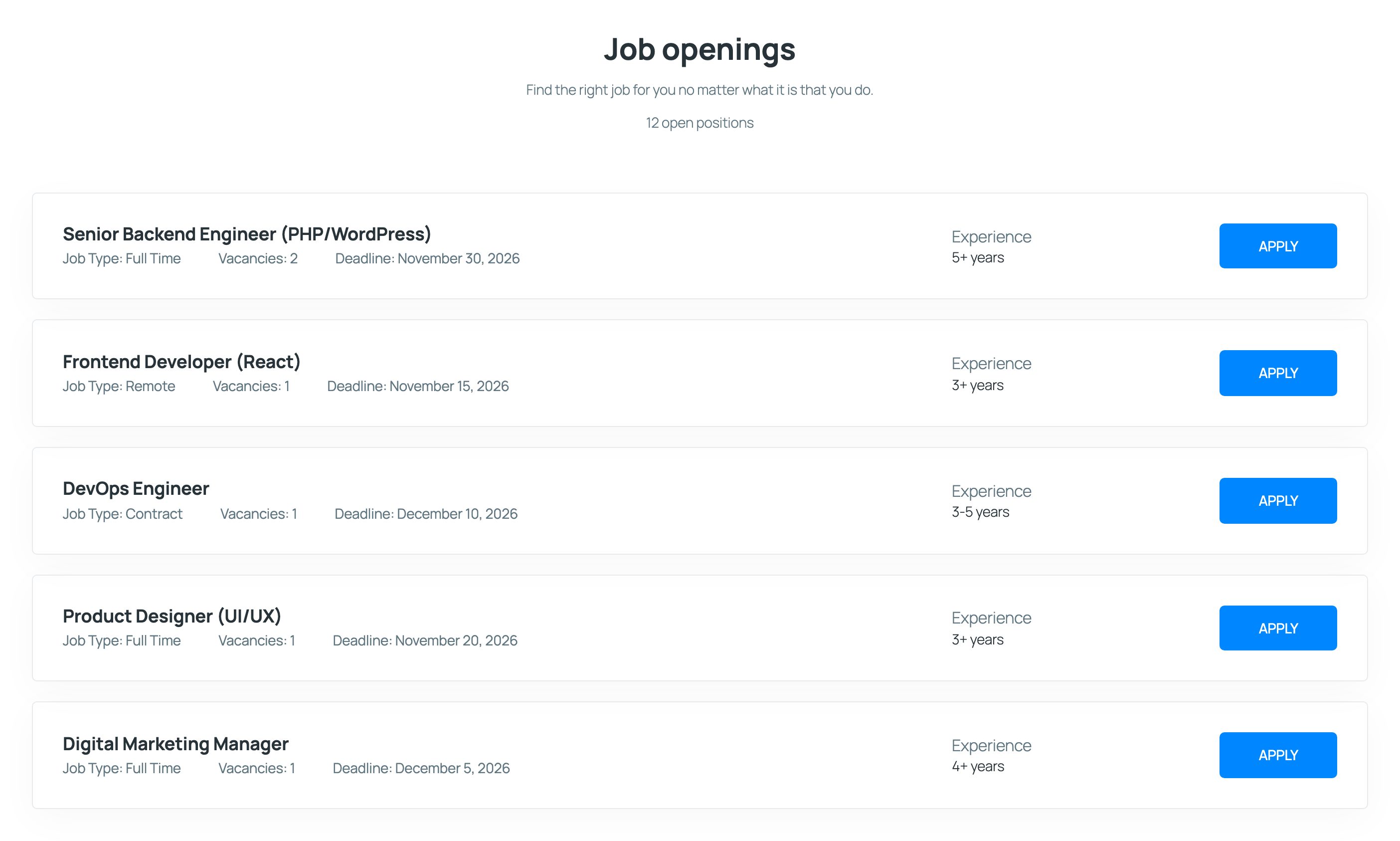
One card per job with the Job Type, Vacancies, Deadline, and Experience, and an Apply button. This is the layout of the Jobs Page.
Design V4: cards grouped by category
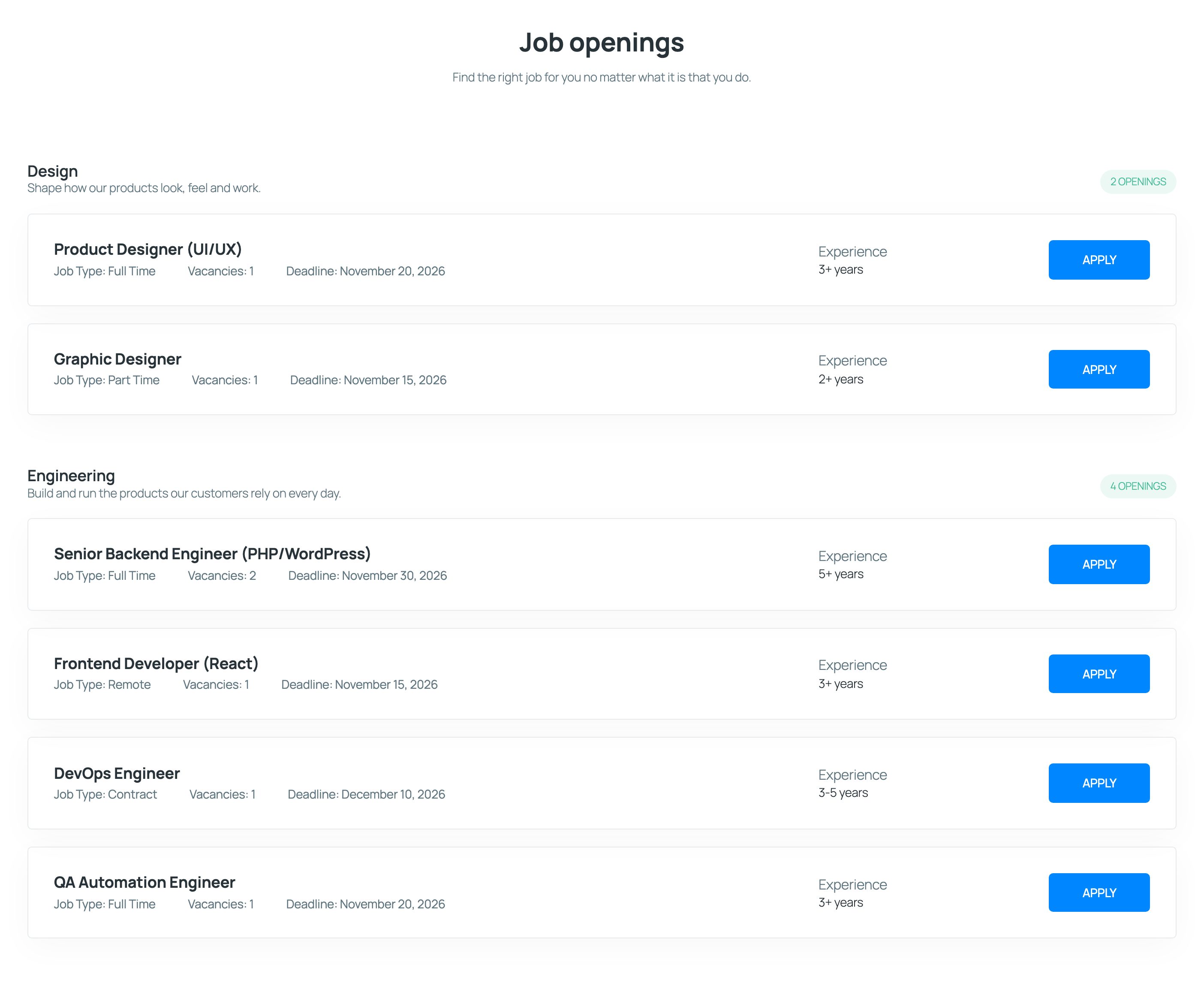
The cards of V3, grouped by category like V2.
Design V5: grid
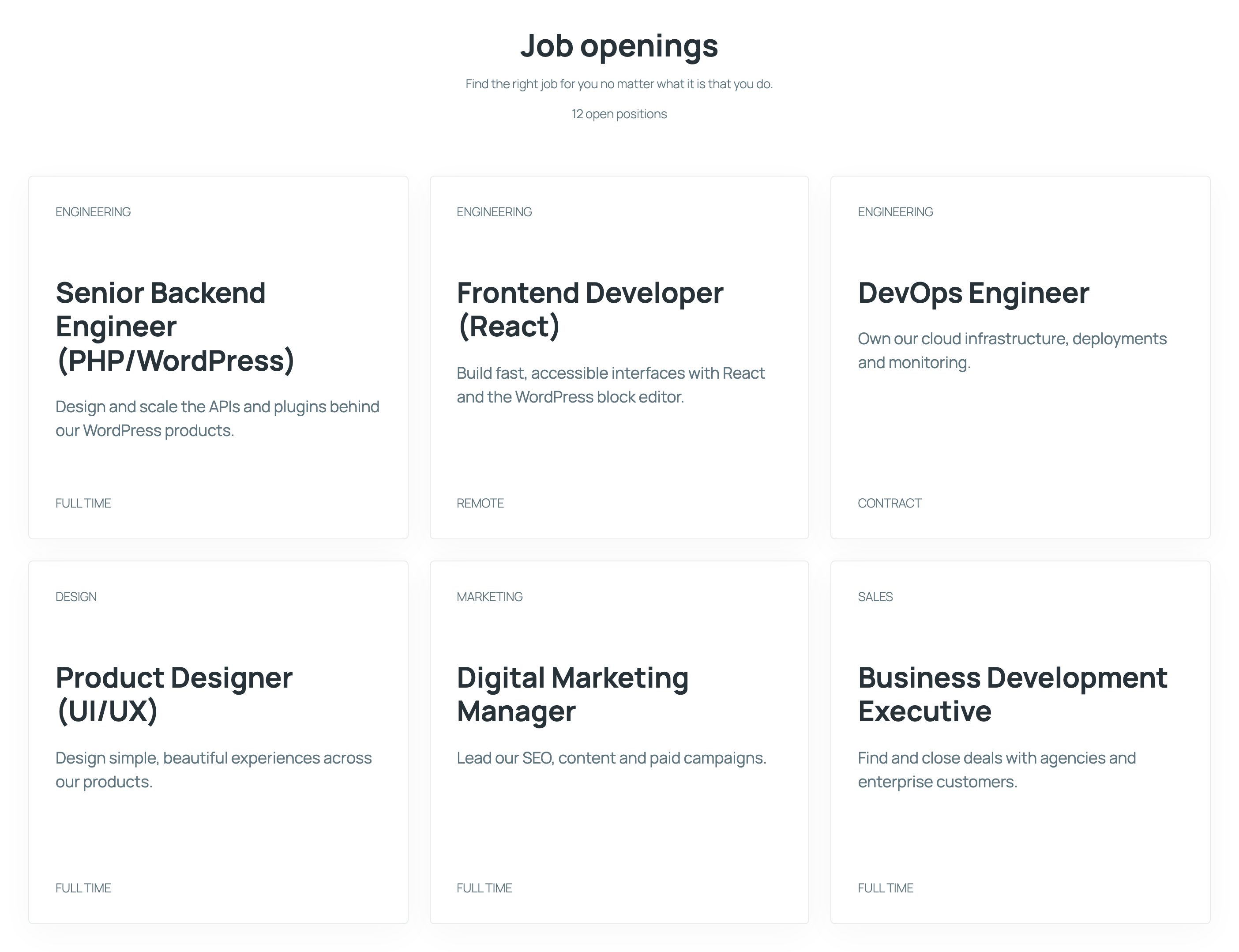
A grid of cards with the category, the job title, the job’s excerpt, and the type. The whole card links to the job. On narrow screens the grid drops to fewer columns. In the block and the Elementor widget, Columns sets the most cards per row.
What each design shows
| Detail | V1 | V2 | V3 | V4 | V5 |
|---|---|---|---|---|---|
| Open positions count | ✓ | ✓ | ✓ | ||
| Category | ✓ | ✓ | |||
| Job type | ✓ | ✓ | ✓ | ✓ | ✓ |
| Location | ✓ | ✓ | |||
| Experience | ✓ | ✓ | ✓ | ||
| Vacancies and deadline | ✓ | ✓ | |||
| Apply button | ✓ | arrow | ✓ | ✓ | whole card |
Turn any of these off for all listings in Listing Defaults, or per listing.
In the grouped designs (V2 and V4), Number of jobs limits each category group rather than the whole list, and jobs without a category appear under Other openings.