Jobs
Add, edit, and organise job openings - every job field, the cover image, and how candidates apply.
Every opening lives under JobPress in the wp-admin menu. Jobs work like WordPress posts: write the description in the editor, then fill in the job details underneath.
The jobs list
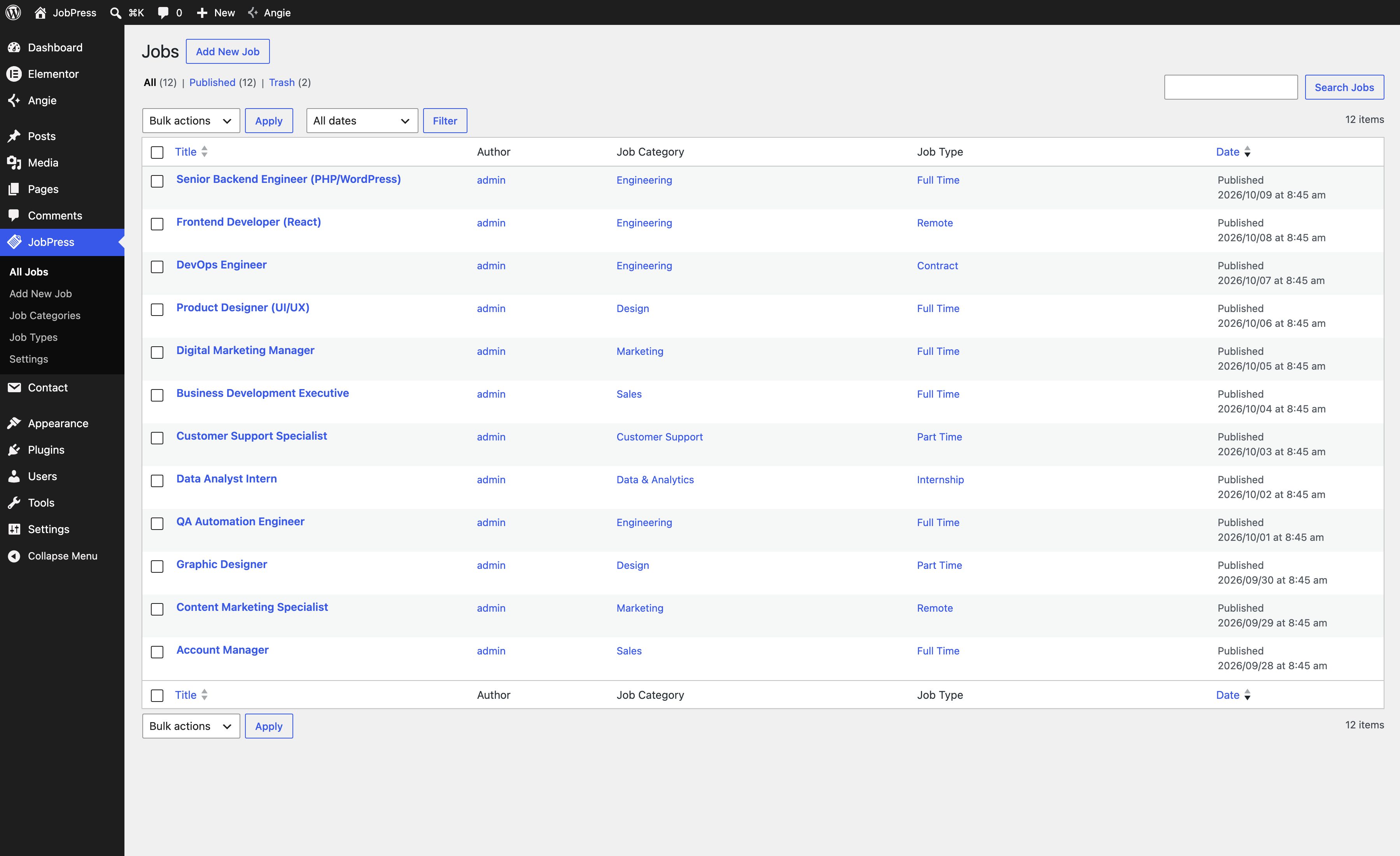
JobPress → All Jobs lists every job.
| Column | What it tells you |
|---|---|
| Title | The job title - click it to edit |
| Author | Who posted the job |
| Job Category | The job’s categories |
| Job Type | The job’s types |
| Date | Published, scheduled, or last modified date |
Search Jobs finds a job by title or description, and All dates filters by month. Hover a row for Edit, Quick Edit, Trash, and View. Bulk actions edits or trashes several jobs at once.
Adding a job
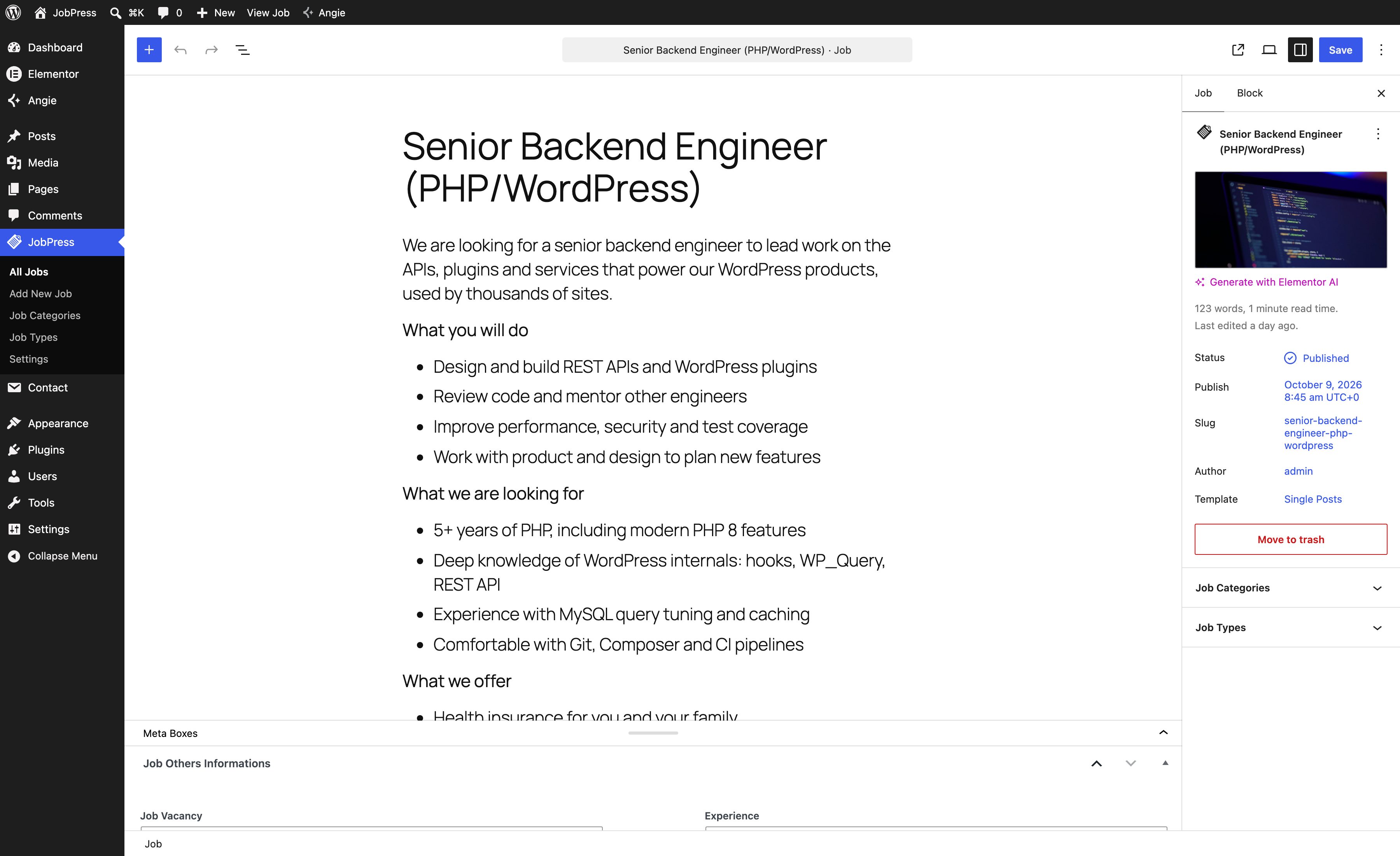
Click Add New Job and:
- Enter the job title and write the description: the role, what the person will do, what you are looking for, and what you offer.
- In the sidebar, tick the job’s Job Categories and Job Types.
- Optionally set a cover image and an excerpt (see below).
- Fill in Job Others Informations under the editor.
- Click Publish.
The job appears on your Jobs Page and in every listing straight away. Unpublish or trash it when the position is filled.
Cover image and excerpt
- Cover image (the featured image) - shown at the top of the single job page.
- Excerpt - a one-line summary shown on the cards of Design V5.
Job details
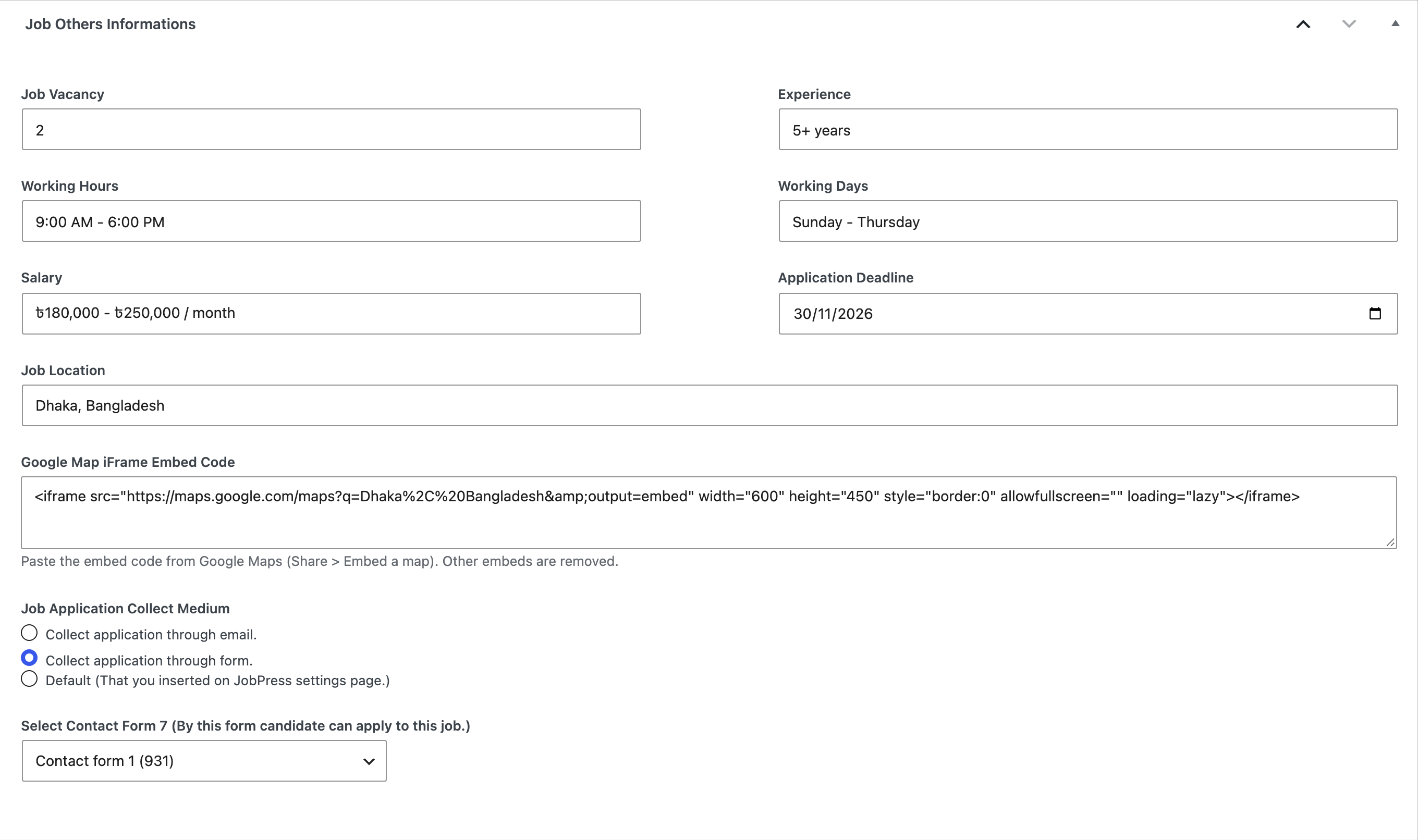
The Job Others Informations box holds the details candidates scan first. Every field is optional, and empty fields are hidden on your site.
- Job Vacancy - how many people you are hiring.
- Experience - free text, such as
3+ yearsorNo experience required. - Working Hours - such as
9:00 AM - 6:00 PM. - Working Days - such as
Sunday - Thursday. - Salary - free text, so you can write a range, a currency, and a period.
- Application Deadline - a date, shown in your site’s date format.
- Job Location - a city, an address, or
Remote. - Google Map iFrame Embed Code - in Google Maps, choose Share → Embed a map, copy the HTML, and paste it here. The map shows under the job description. Other embed codes are removed.
Where each detail appears:
| Detail | Shown on |
|---|---|
| Location | The job page, Designs V1 and V2 |
| Experience | The job page, the Jobs Page, Designs V2, V3, and V4 |
| Vacancy and deadline | The job page, the Jobs Page, Designs V3 and V4 |
| Working hours, working days, salary | The job page |
You can hide a detail everywhere from Listing Defaults, or per listing.
How candidates apply
Job Application Collect Medium decides what the apply section at the bottom of the job page shows:
- Collect application through email. - shows the text you write in Resume Submit Description With Email Address, for example “Send your CV to careers@yourcompany.com”. Email addresses become clickable links.
- Collect application through form. - shows a Contact Form 7 form. Pick it under Select Contact Form 7 (By this form candidate can apply to this job.). This option is disabled until the Contact Form 7 plugin is active.
- Default (That you inserted on JobPress settings page.) - shows the Resume Submit Instruction from Settings → General, so you can write it once for every job.
Tip
Most jobs share one way to apply. Set the Resume Submit Instruction once in Settings and leave each job on Default - you then only touch this box for jobs that apply differently.