Settings
Configure the Jobs Page, application instructions, brand colors, the default listing design, and what every listing shows.
Go to JobPress → Settings. The settings screen has three tabs - General, Appearance, and Shortcodes - each with its own Save Changes button. The Settings link under JobPress on the Plugins screen opens it too.
General
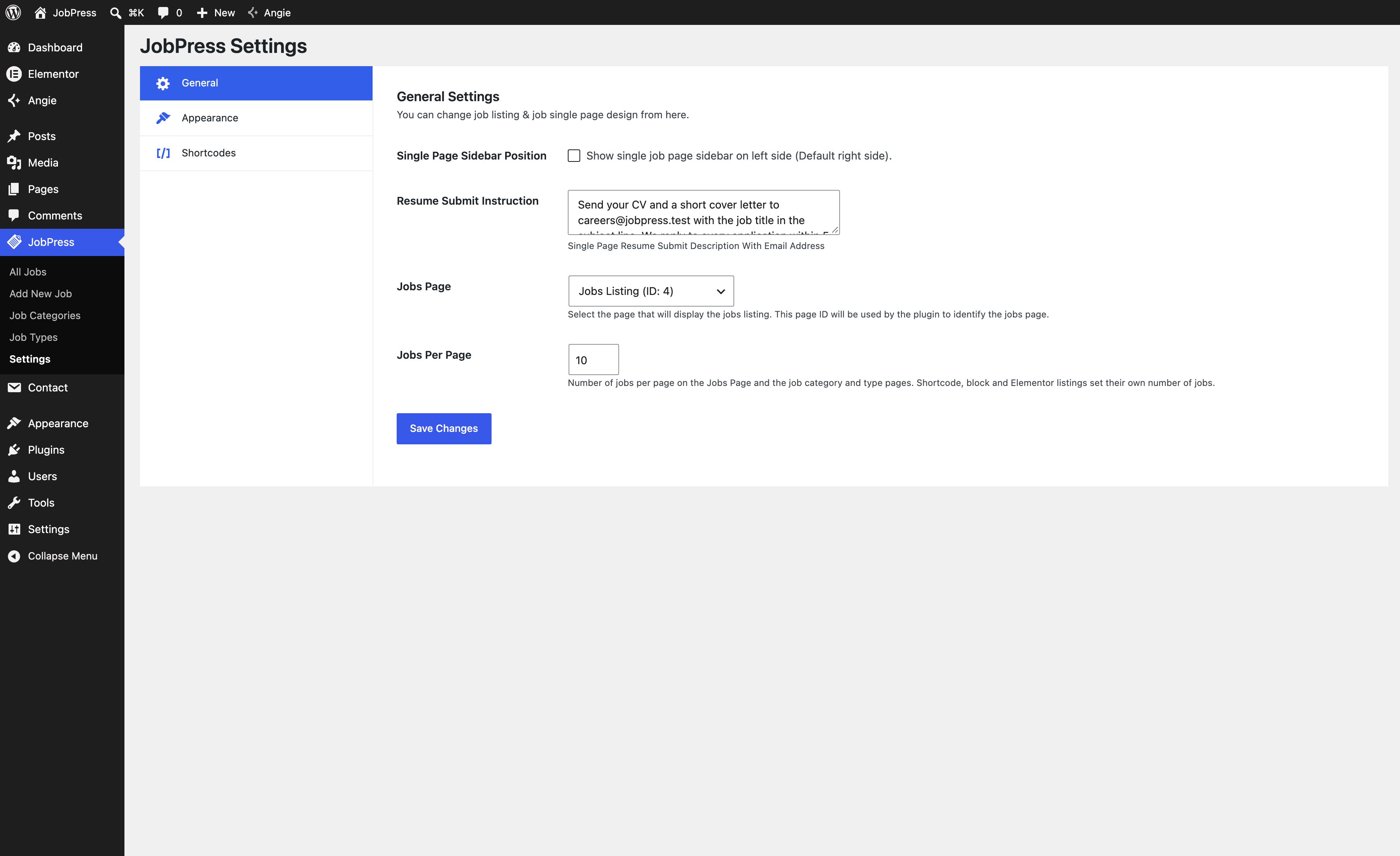
- Single Page Sidebar Position - tick to show the job page sidebar on the left. It is on the right by default.
- Resume Submit Instruction - how to apply, used by every job set to Default and by jobs with no application medium chosen. Email addresses become links. For example: “Send your CV and a short cover letter to careers@yourcompany.com with the job title in the subject line.”
- Jobs Page - which page is your Jobs Page. JobPress creates and selects Jobs Listing on activation.
- Jobs Per Page - how many jobs the Jobs Page and the category and type pages show before paginating. Defaults to 10. Listings use their own Number of jobs instead.
Appearance
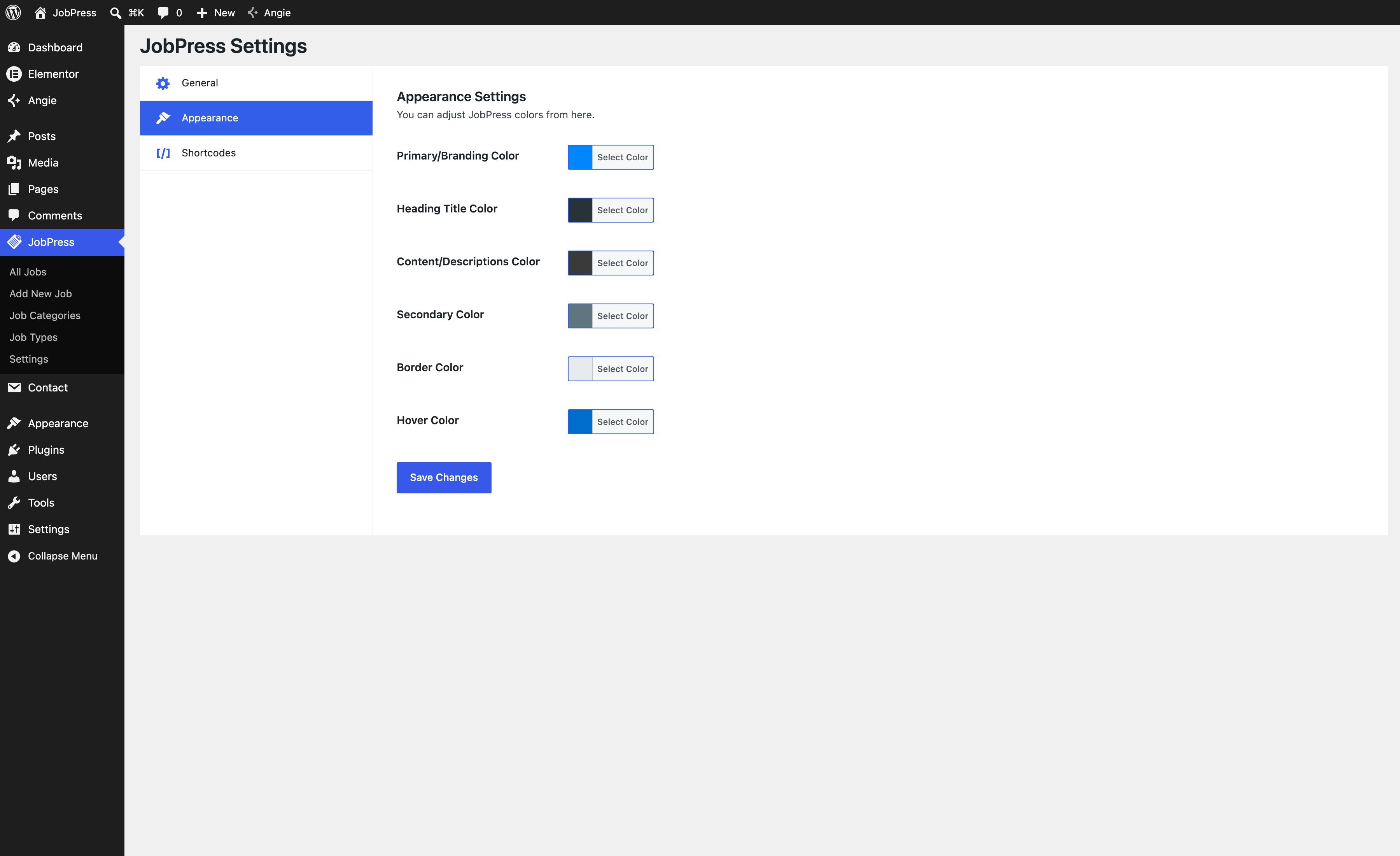
Six colors style every JobPress page and listing. Click Select Color to pick one:
- Primary/Branding Color - buttons, links, and highlights.
- Heading Title Color - job titles and headings.
- Content/Descriptions Color - the job description on the job page.
- Secondary Color - job details such as the type and deadline.
- Border Color - card and field borders.
- Hover Color - buttons and links on hover.
A block or Elementor widget can override these colors for one listing, and the shortcode takes them as attributes.
Shortcodes
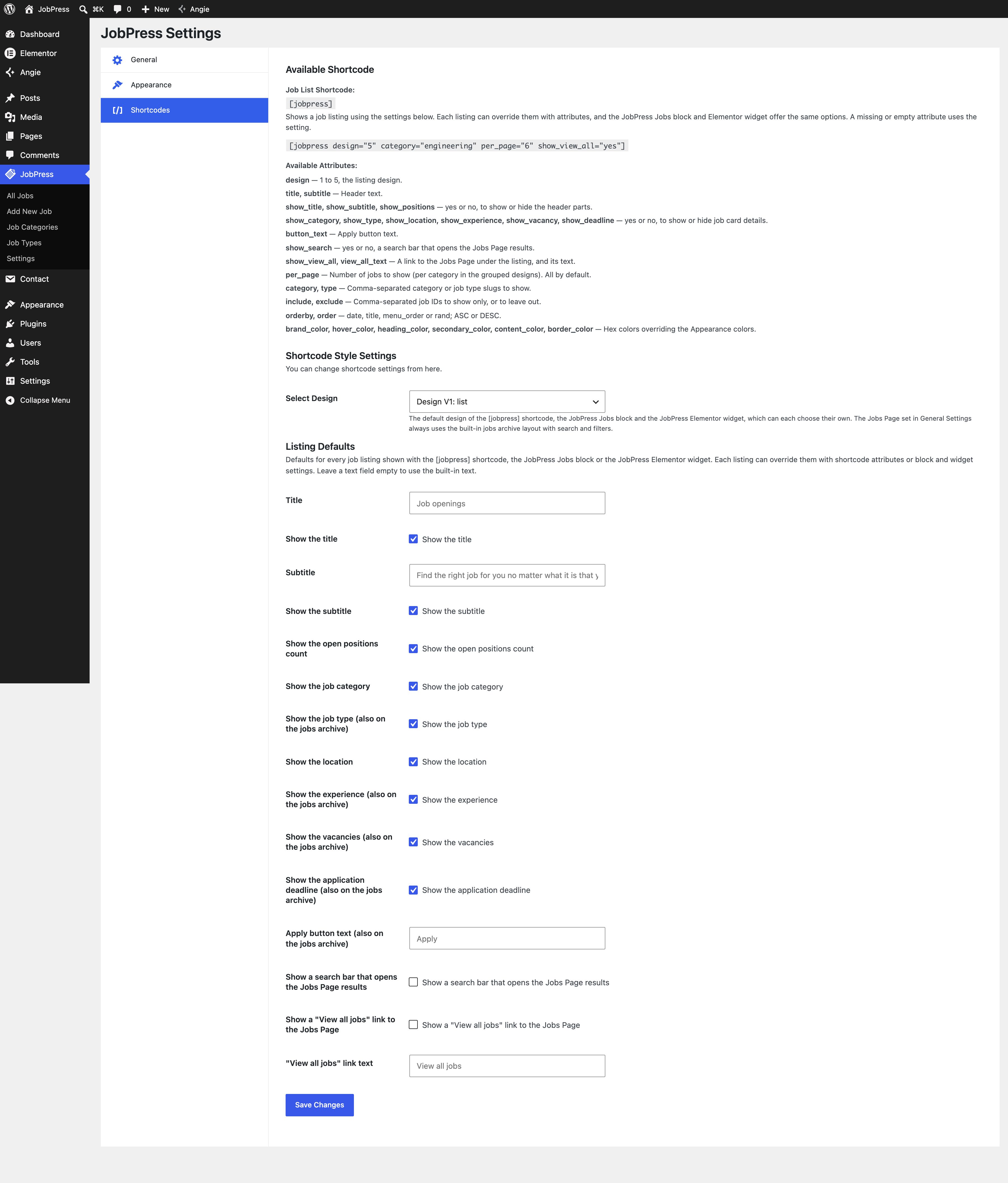
The top of the tab, Available Shortcode, is a quick reference for the
[jobpress] shortcode and its attributes. The full guide is on the
Shortcode page.
Select Design sets the design of every listing that doesn’t choose its own, from Design V1: list (the default) to Design V5: grid - the same names the block and the Elementor widget use.
Listing Defaults
What every listing shows unless the shortcode, block, or widget says otherwise. Leave a text field empty to use the built-in text shown in grey.
- Title - default “Job openings”. Show the title.
- Subtitle - default “Find the right job for you no matter what it is that you do.” Show the subtitle.
- Show the open positions count
- Show the job category, Show the job type, Show the location, Show the experience, Show the vacancies, Show the application deadline - the details on each job card.
- Apply button text - default “Apply”.
- Show a search bar that opens the Jobs Page results - off by default.
- Show a “View all jobs” link to the Jobs Page - off by default, with its “View all jobs” link text.
Settings marked (also on the jobs archive) - the job type, experience, vacancies, deadline, and button text - also apply to the Jobs Page cards.
Tip
Set your listing text and colors here first, then leave the block, widget, and shortcode options on Default. Every listing on your site then changes together when you update one setting.