Products
List, filter, add, and edit every WooCommerce product type - plus quick edit, bulk edit, variations, and CSV export.
Everything you sell lives under Products in the sidebar. StoreSuite handles every WooCommerce product type - simple, variable, grouped, and external/affiliate - including virtual and downloadable products.
The products list
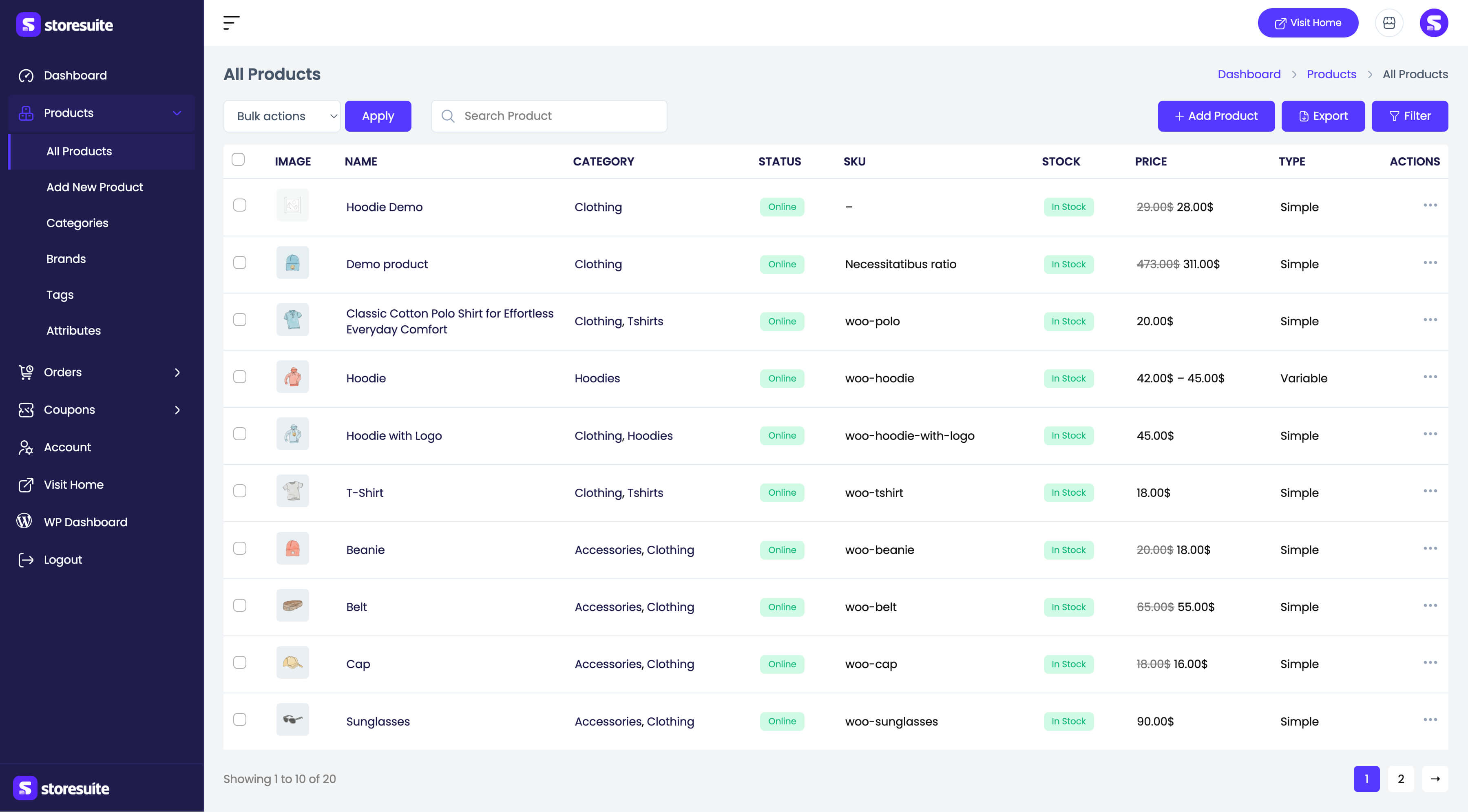
| Column | What it tells you |
|---|---|
| Image | The featured image, or a placeholder |
| Name | The product title - click it to edit |
| Category | The categories the product belongs to |
| Status | Online, draft, or pending review |
| SKU | The stock keeping unit, if set |
| Stock | A colored badge: in stock (with quantity when tracked), out of stock, or on backorder |
| Price | Current price, with the old price struck through on sale items |
| Type | Simple, variable, grouped, external, virtual… |
Use Search Product to find a product by name. Row actions (the ⋯ menu) offer View, Edit, Quick edit, and Delete (move to trash).
Filters
The Filter button opens a panel with four filters that combine with each other and with search:
- Filter by category (with product counts)
- Filter by product type
- Filter by stock status
- Filter by brand
Filter Products applies them; Reset clears everything.
Quick edit
Quick edit opens an inline form over the list so you can change the basics without a full page load: title, categories, tags, status, SKU, price and sale price, weight and dimensions, shipping class, visibility, stock (manage stock, quantity, stock status, backorders), and whether reviews are enabled. The row re-renders in place when it saves.
Bulk actions
Tick the checkboxes and pick a Bulk action:
- Edit - opens the bulk edit modal (status, price and sale price with increase/decrease/percentage modes, cost of goods, tax status and class, weight and dimensions, shipping class, visibility, featured, stock status, manage stock, stock quantity, backorders, sold individually, reviews).
- Move to Trash
- Export - opens the CSV export modal, scoped to the selected products.
Adding and editing a product
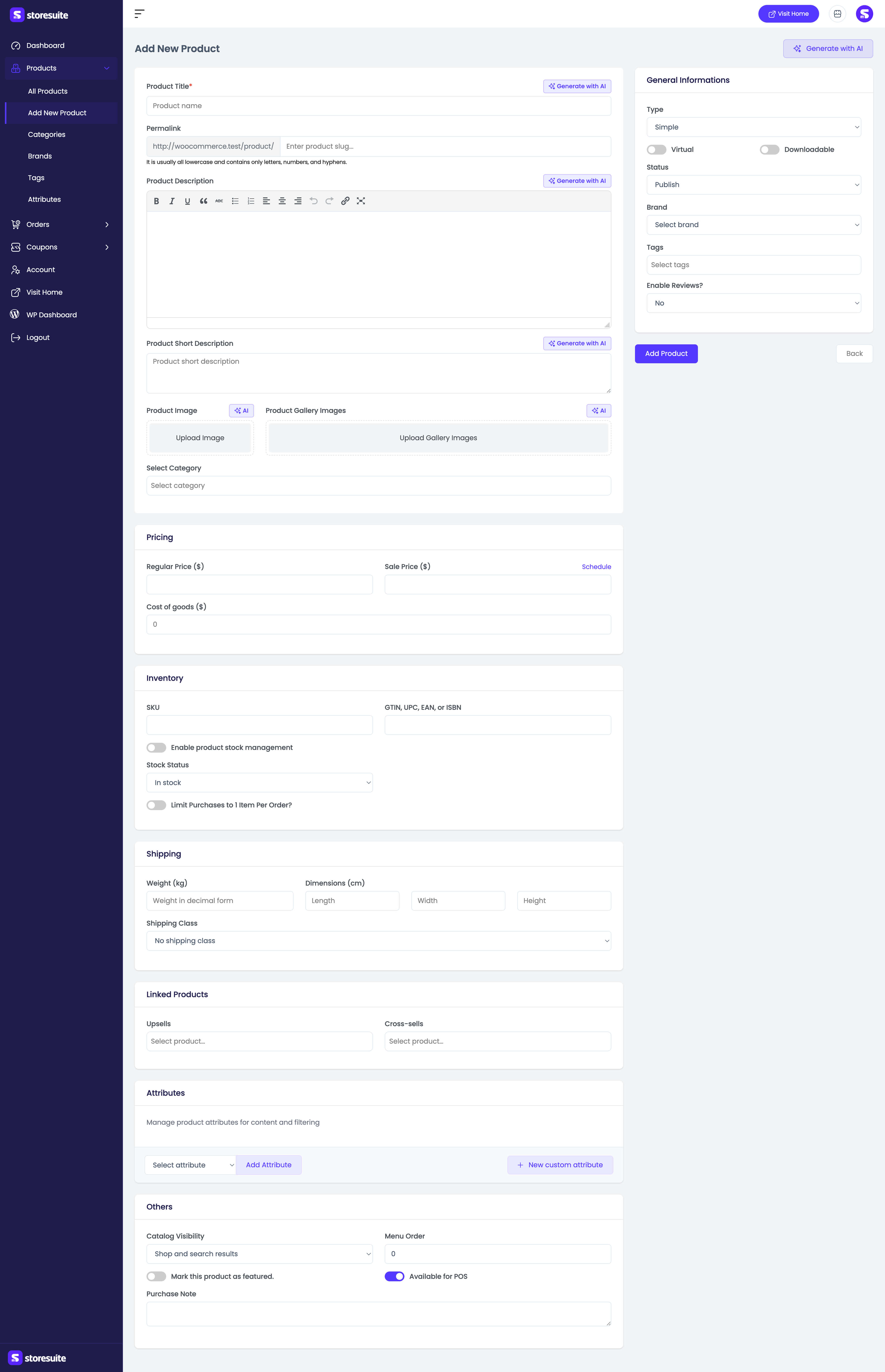
Only the Product Title is required, so you can publish a stub and refine it later. The form is grouped into cards:
- Basics - title, permalink, description and short description (rich text), featured image, gallery images, categories.
- Pricing - regular price, sale price with an optional Schedule (start and end dates that flip the sale on and off automatically), and cost of goods.
- Downloadable - downloadable files, download limit, and download expiry (shown when the product is downloadable).
- Inventory - SKU; GTIN/UPC/EAN/ISBN; stock management with quantity, low stock threshold, and backorders; manual stock status; and “limit purchases to 1 item per order”.
- Shipping - weight, dimensions, and shipping class.
- Linked Products - grouped products, upsells, and cross-sells.
- Others - catalog visibility, menu order, featured flag, and purchase note.
- General Information (right panel) - product type, virtual/downloadable toggles, external product URL and button text, status, brand, tags, and whether reviews are enabled.
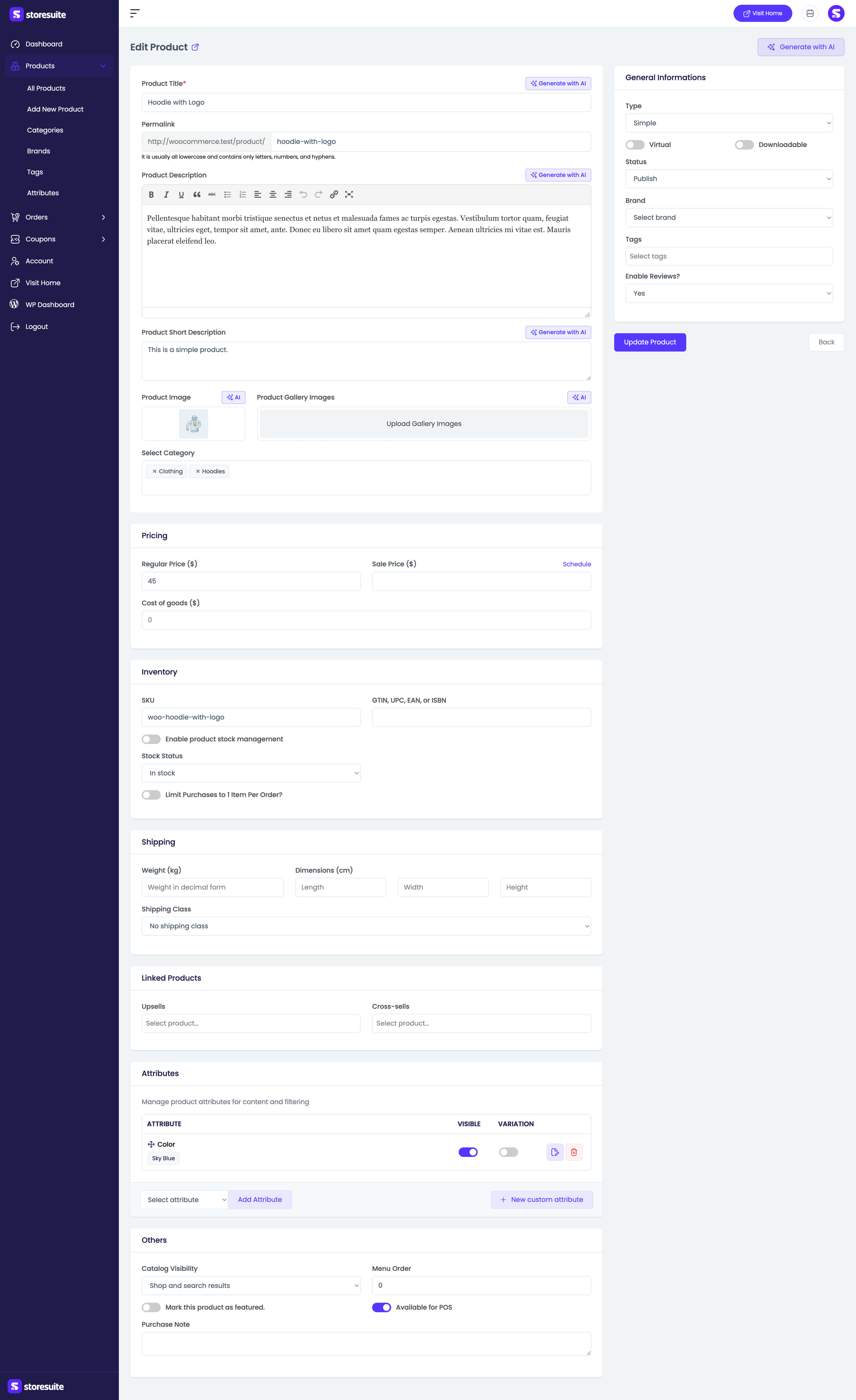
Editing uses the same form with every field pre-filled, plus the product’s permalink under the title. A sticky action bar appears as soon as you have unsaved changes so you can save or discard.
AI assist
When an AI provider is connected, “Generate with AI” buttons appear on the title, short description, long description, featured image, and gallery - plus an all-in-one generator in the page header. See AI Studio.
Variable products and variations
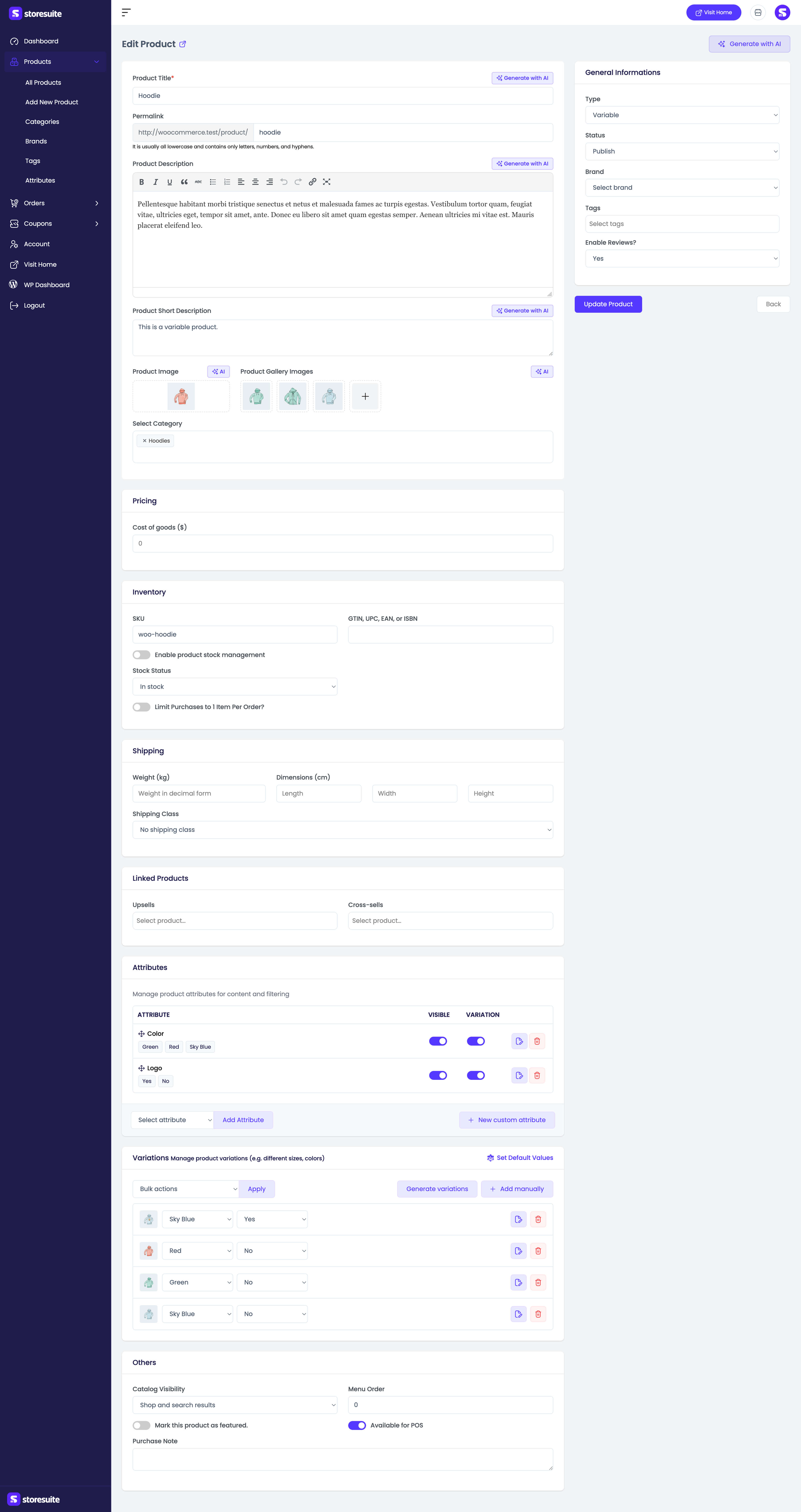
Switch the product Type to Variable and the form gains attributes and variations panels. From there you can:
- Add global attributes (from Attributes) or custom, product-specific ones, and mark them used for variations.
- Generate all variations from the selected attribute terms in one click.
- Add or remove individual variations by hand.
- Edit each variation’s image, SKU, price, sale price and schedule, stock, shipping, and downloadable files.
- Bulk edit variations - toggle enabled/virtual/downloadable, set or increase/decrease regular and sale prices (fixed amount or percentage), set scheduled sale dates, and set stock, stock status, and more across every variation at once.
- Set Default Values - choose the attributes customers see pre-selected on the storefront.
CSV export
Bulk actions → Export (or the export action on the list) opens the export modal:
- Which columns should be exported? - all columns, or a subset, plus downloads and attributes.
- Which product types should be exported? - including variable product with variations and product variations.
- Which product category should be exported?
- Export custom meta? - optionally include all custom meta.
Click Generate CSV; a progress bar tracks the batched export and the file downloads when it finishes.