AI Studio
Generate product titles, descriptions, and images using your own AI provider.
StoreSuite’s AI features draft product content and images on demand. They are built on the WordPress core AI Client and Connectors API, so you bring your own provider and keys - generation runs on the models and budget you configure in WordPress.
Requirement
AI requires WordPress 7.0+ and at least one connected provider. When core lacks AI support or no provider is configured, every AI button hides itself - text and image generation are gated separately, so an image-incapable provider simply hides the image buttons.
Per-field generation
A Generate with AI button sits in the label of the product title, short description, and long description. Each opens an editable suggestion you can accept, regenerate (the previous attempt is passed back to the model so you get a genuinely different angle), or step through with the history pager.
Descriptions need something to work from - add a title or a few keywords first, and the generator also feeds the model your selected categories and any existing summary for tone.
All-in-one generation
The header button on the Add/Edit Product page takes a single hint and drafts all three fields in sequence - hint → title → long description → short description - each step using the previous output as context.
Image generation
An AI button on the featured image and gallery images fields opens a prompt modal. Describe the image, preview the result, regenerate if needed, and only when you click Insert is it added to the media library - previews are held server-side in a short-lived transient until then.
AI settings
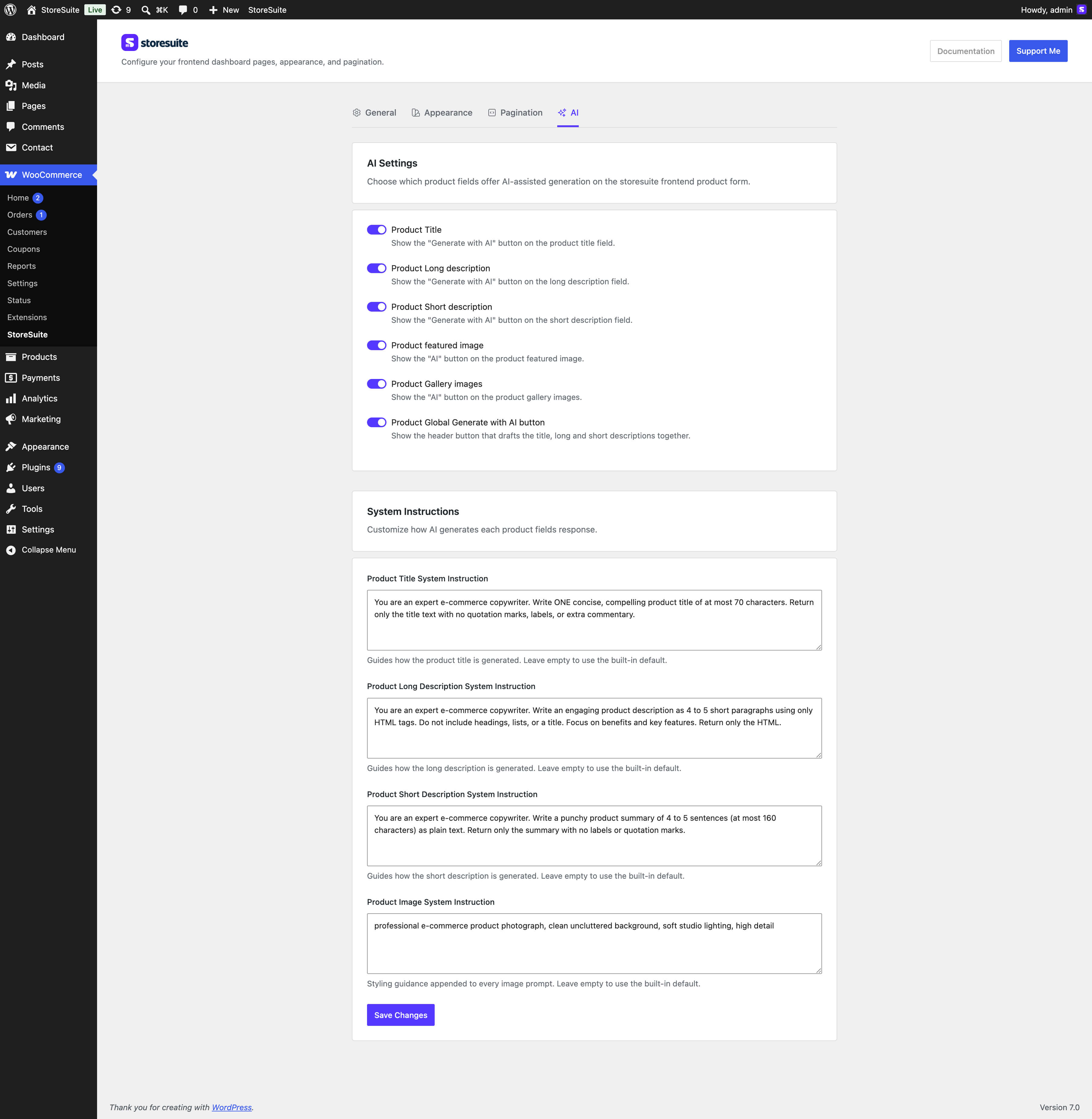
WooCommerce → StoreSuite → AI in wp-admin controls the feature:
- Per-field toggles - show or hide the AI button on the title, long description, short description, featured image, gallery images, and the all-in-one header button. Every field is on unless you turn it off.
- Custom system instructions - override the built-in prompt for the title, long description, short description, and images. Leave one empty to use the built-in default (the textareas are prefilled with the instruction actually in effect).
The tab also links to the WordPress Connectors page and warns you when no provider is connected.
Connecting a provider
- Configure an AI provider in WordPress (core AI Client / Connectors).
- Open a product in the StoreSuite dashboard.
- AI actions appear on the supported fields as soon as a capable provider is available.