Coupons
Create and manage WooCommerce discount codes - types, restrictions, usage limits, and status.
Coupons manages every WooCommerce discount code from the frontend - from a blanket “10% off” to a tightly targeted “free shipping for one customer on orders over 50”.
The coupons list
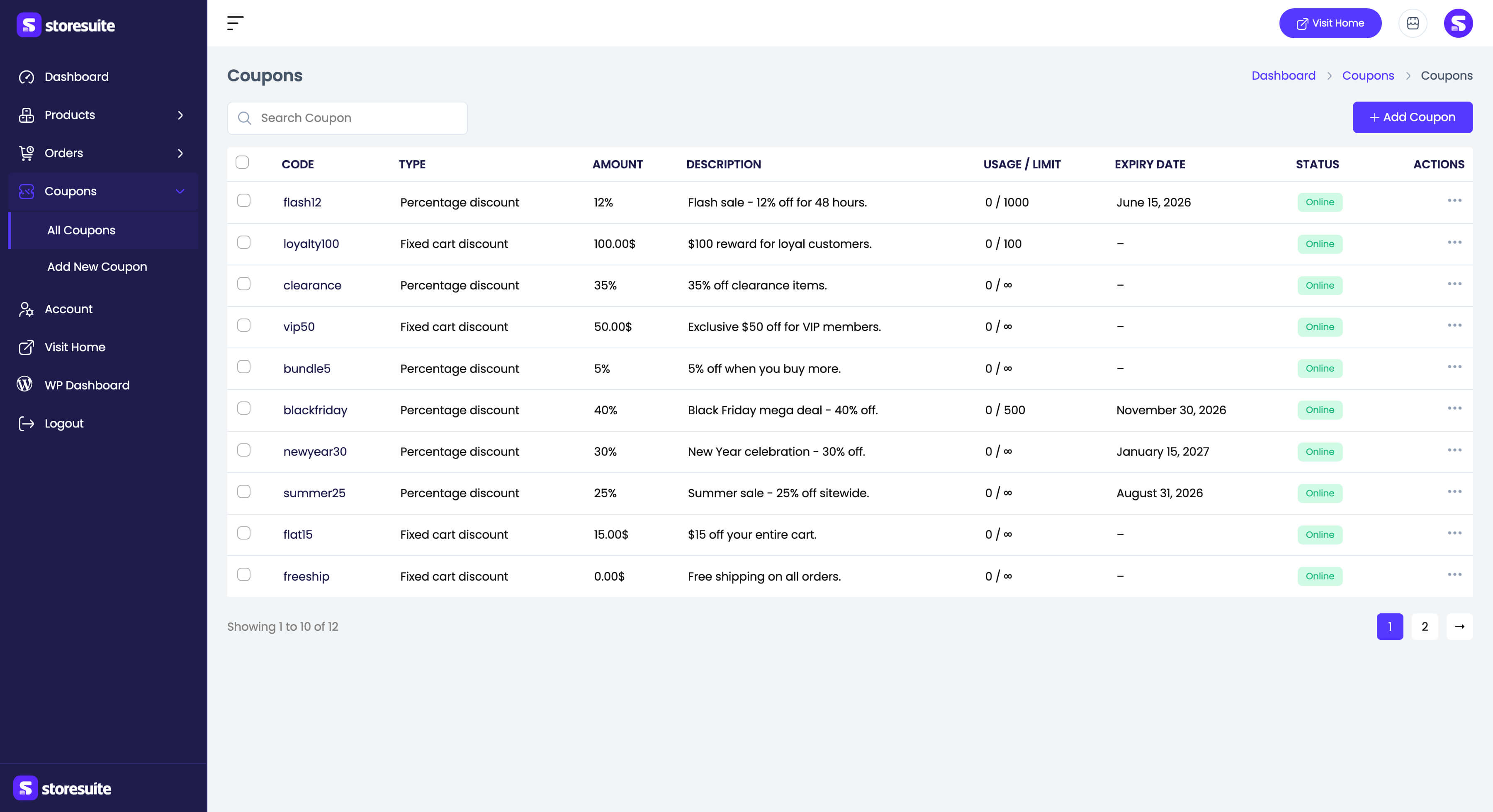
| Column | What it tells you |
|---|---|
| Code | The code customers type at checkout |
| Type | Percentage, fixed cart, or fixed product discount |
| Amount | The discount value |
| Description | Your internal note |
| Usage / Limit | Redemptions so far versus the limit (∞ when unlimited) |
| Expiry Date | When it stops working, or – |
| Status | Published, draft, or pending review |
Search Coupon finds a code instantly. Row actions offer Edit and Delete, and the Bulk actions dropdown offers Edit (a modal that changes status across the selection) and Move to Trash.
Creating a coupon
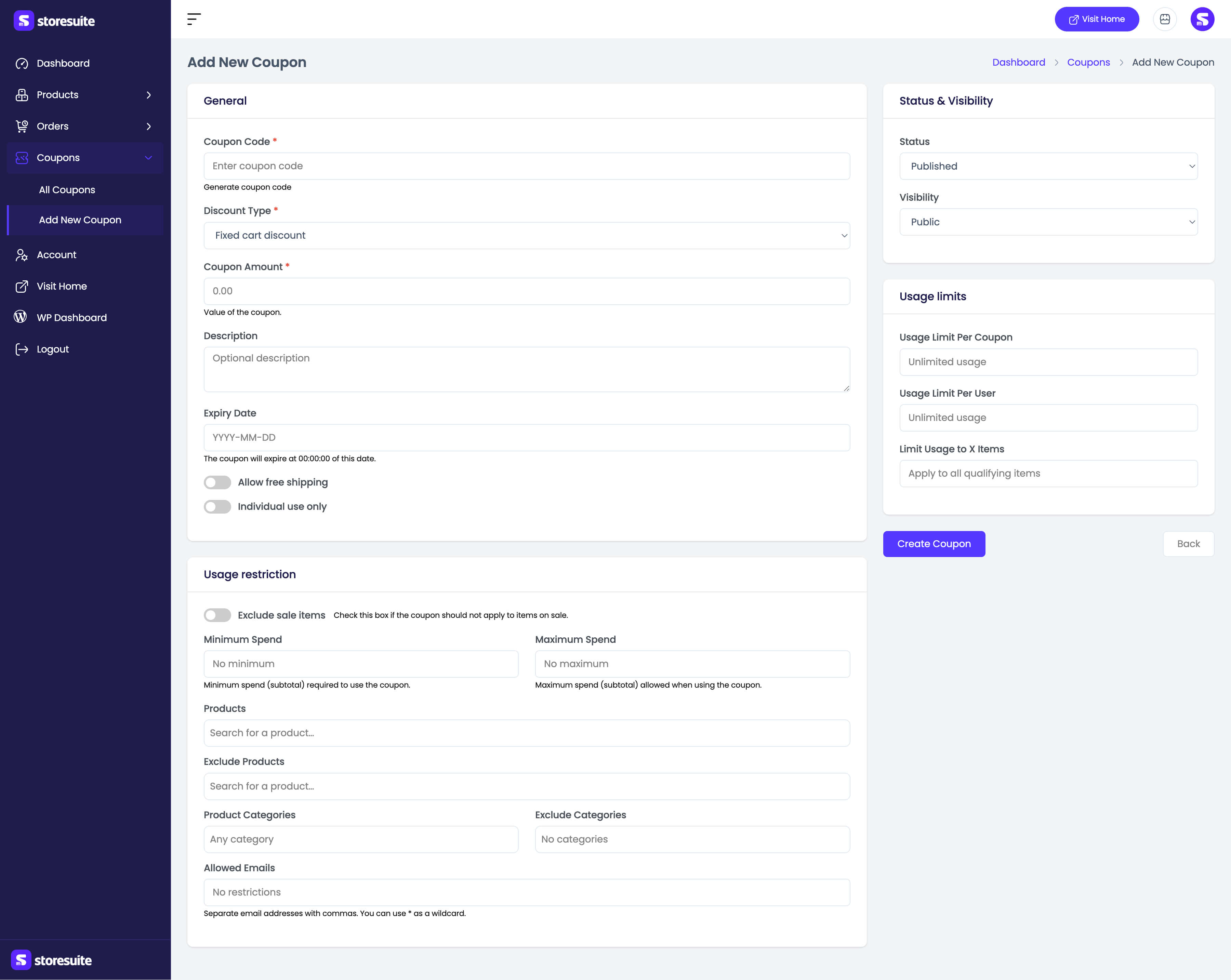
Click Add Coupon. Only the top three fields are required - everything else is optional fine-tuning.
General
- Coupon Code (required) - or click Generate coupon code for a random one.
- Discount Type (required) - percentage discount, fixed cart discount, or fixed product discount.
- Coupon Amount (required).
- Description - private, for your reference only.
- Expiry Date - the coupon expires at 00:00:00 on that date.
- Allow free shipping - unlocks free shipping methods that require a coupon.
- Individual use only - prevents stacking with other coupons.
Usage restriction
- Exclude sale items
- Minimum Spend / Maximum Spend (cart subtotal)
- Products / Exclude Products
- Product Categories / Exclude Categories
- Allowed Emails - comma-separated, with
*as a wildcard (*@company.com).
Usage limits
- Usage Limit Per Coupon
- Usage Limit Per User
- Limit Usage to X Items
Status & visibility
- Status - Published, Pending review, or Draft.
- Visibility - Public or Private.
Click Create Coupon and it is redeemable immediately. Editing opens the same form pre-filled; save with Update Coupon.
Manual orders too
Coupons apply to orders you create by hand: the Discounts & Fees card in the order editor has an Apply Coupon button that honours the same rules as checkout.